
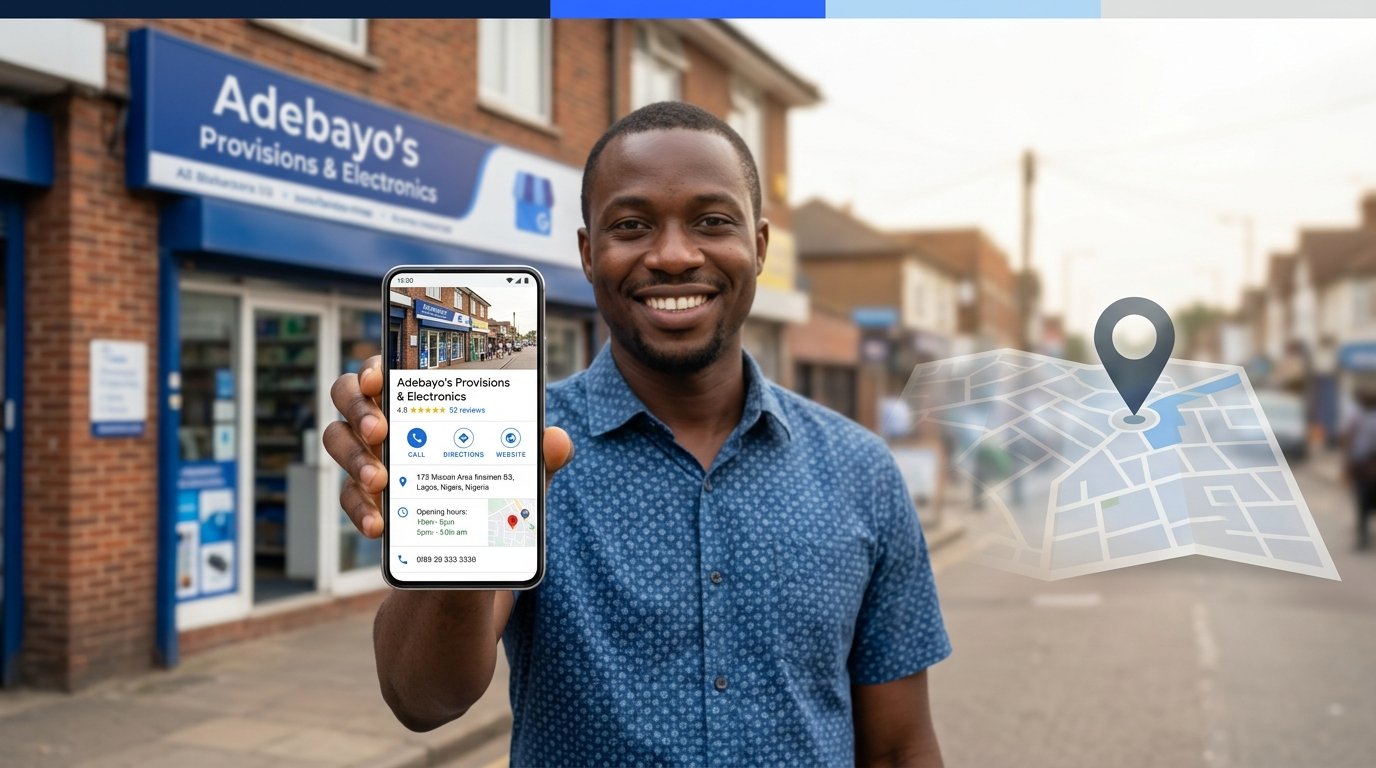
A Google Business Profile can put a local business in front of someone who is already searching for its name, service or location. It can show the phone number, directions, opening hours, photos, reviews and other useful details in Google Search and Maps.
That makes setup worth doing carefully. A false address, duplicate profile or keyword-packed business name can create verification trouble instead of visibility.
This guide explains who qualifies, what to prepare, how to create a profile on a phone, how verification works and what to check when the profile does not behave as expected. Google’s screens change regularly, so use the screenshots as a practical guide and follow the wording shown on your own account.
What is a Google Business Profile?
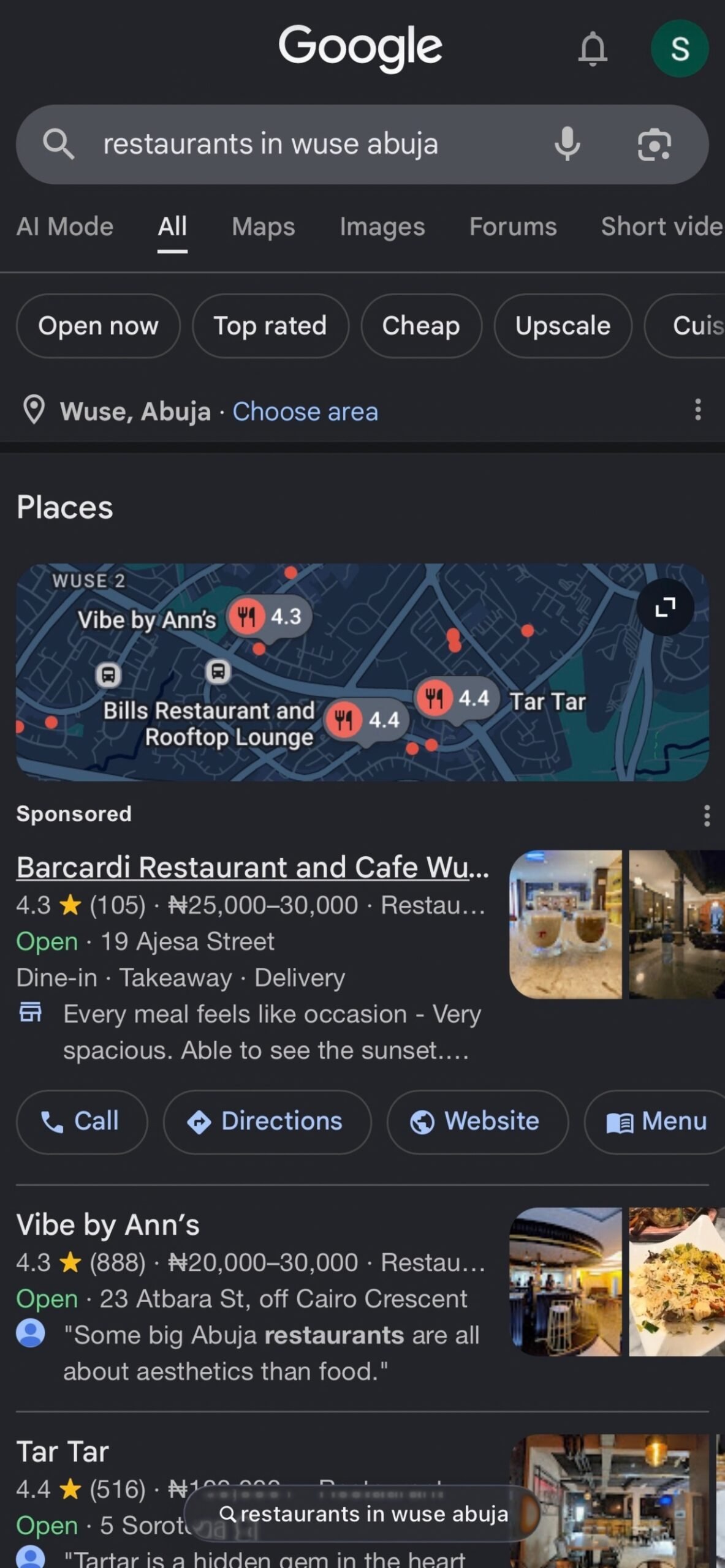
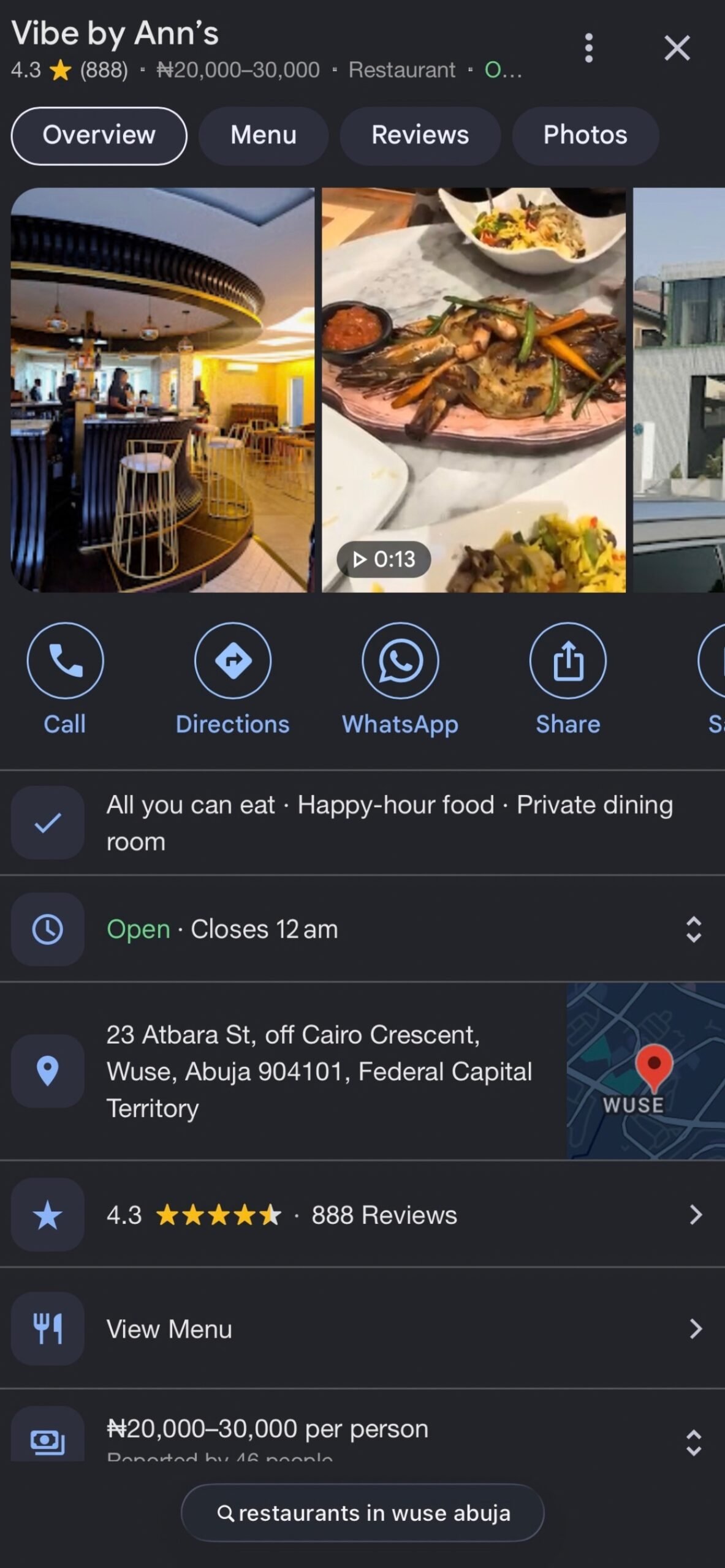
Google Business Profile is Google’s free system for eligible businesses to manage how their information appears on Google Search and Google Maps. It replaced the name Google My Business, although many people still use the older term.
A profile can display the business name, category, location or service area, phone number, website, opening hours, photos, services, products where supported, reviews, updates and selected booking or messaging features.
The profile is especially useful for searches with local intent. Someone searching for “barbers near me” or “AC repair Abuja” usually wants a provider they can visit or one that can come to them. Accurate profile information helps Google understand the business and helps the customer decide whether it fits.
Why does your business need a Google Business Profile?
Without an accurate profile, a customer may struggle to confirm where the business is, when it opens or how to contact it. Google may already have assembled information from public websites, user contributions and licensed sources; claiming the profile gives the owner much more control over those details.
A maintained profile can help people call, request directions, visit the website, see photos, read reviews and check services before making contact. It can also support local visibility because Google uses profile information to judge how closely a business matches a search.
Google describes the main local ranking considerations as relevance, distance and prominence. Complete information can improve Google’s understanding, but no field, payment or optimisation trick guarantees the first position in Maps.
Keep the promise realistic
A verified profile is not a guaranteed ranking. Google states that businesses cannot request or pay for a better organic local position. Treat the profile as accurate business information first and a visibility asset second.
Who can have a Google Business Profile?
Eligibility turns on real-world customer contact. Under Google’s current eligibility guidance, a business generally needs to serve customers face to face during its stated hours.
Storefront businesses
These businesses receive customers at a genuine location: restaurants, salons, clinics, hotels, supermarkets, repair shops and retail stores. The address can normally appear publicly when customers are actually served there.
Service-area businesses
These businesses travel to customers instead of serving them at their address. Cleaners, plumbers and mobile technicians are common examples. They can list service areas and should hide the address when customers do not visit it.
Hybrid businesses
A hybrid business has a customer-facing location and also delivers or travels to customers. A restaurant with dine-in service and delivery is a simple example. An eligible hybrid business can display its location and add service areas.
Online-only businesses
A business that operates entirely online and never meets customers in person generally does not qualify for a standard profile. Its website, social presence and wider SEO work are the appropriate discovery tools.
Virtual offices and borrowed addresses
A rented mailing address or location where the business does not genuinely operate is not an acceptable shortcut. A coworking location must meet Google’s extra conditions, including clear signage, receiving customers and being staffed by the business during opening hours.
What you need before creating your profile
Prepare the information that applies to your business before you open the setup form:
- A business-controlled Google Account. Add managers later instead of sharing its password.
- The real business name. Use the name customers see in the real world.
- An accurate primary category. Choose the closest available category for the core business.
- Your location model. Know whether customers visit you, you visit them, or both.
- A customer-facing phone number and website, if available.
- Normal operating hours and any immediate special-hour changes.
- Real photos of the premises, work, team, products or equipment.
- Verification evidence. Depending on the method Google offers, this may include signage, the surrounding location, equipment, branded materials or documents showing that you control the business.
Not every item is mandatory for every category. The point is to avoid guessing halfway through the process.
How to create a Google Business Profile on your phone
Google changes the setup interface regularly. The order and wording on your phone may not match these screenshots exactly, but the underlying decisions are the same.
Step 1: Open Google Business Profile
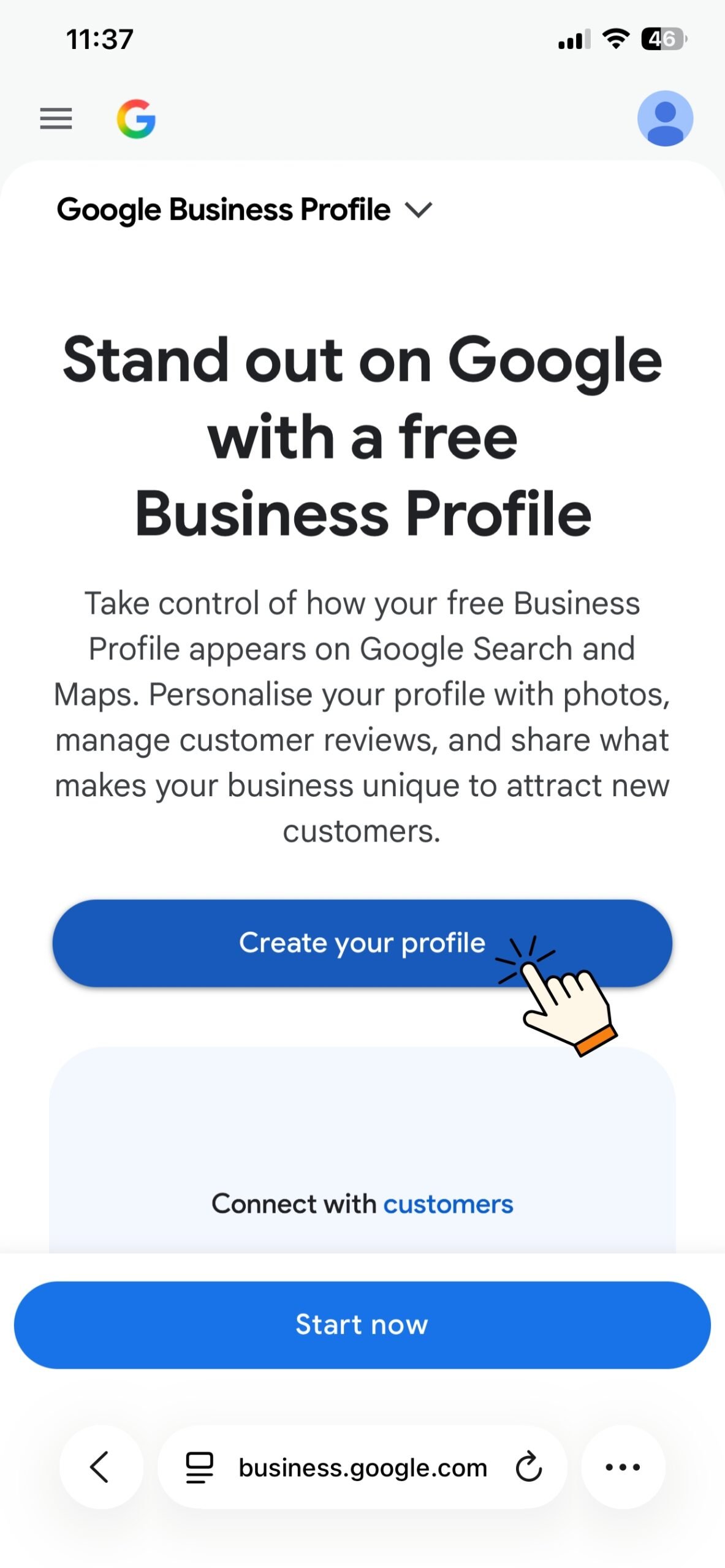
On your phone, open Google’s Business Profile setup and sign in with the Google Account that should control the profile. For a company, use an account the business controls. You can add owners and managers later without sharing the password.
Tap Create your profile or the equivalent button shown on your screen.
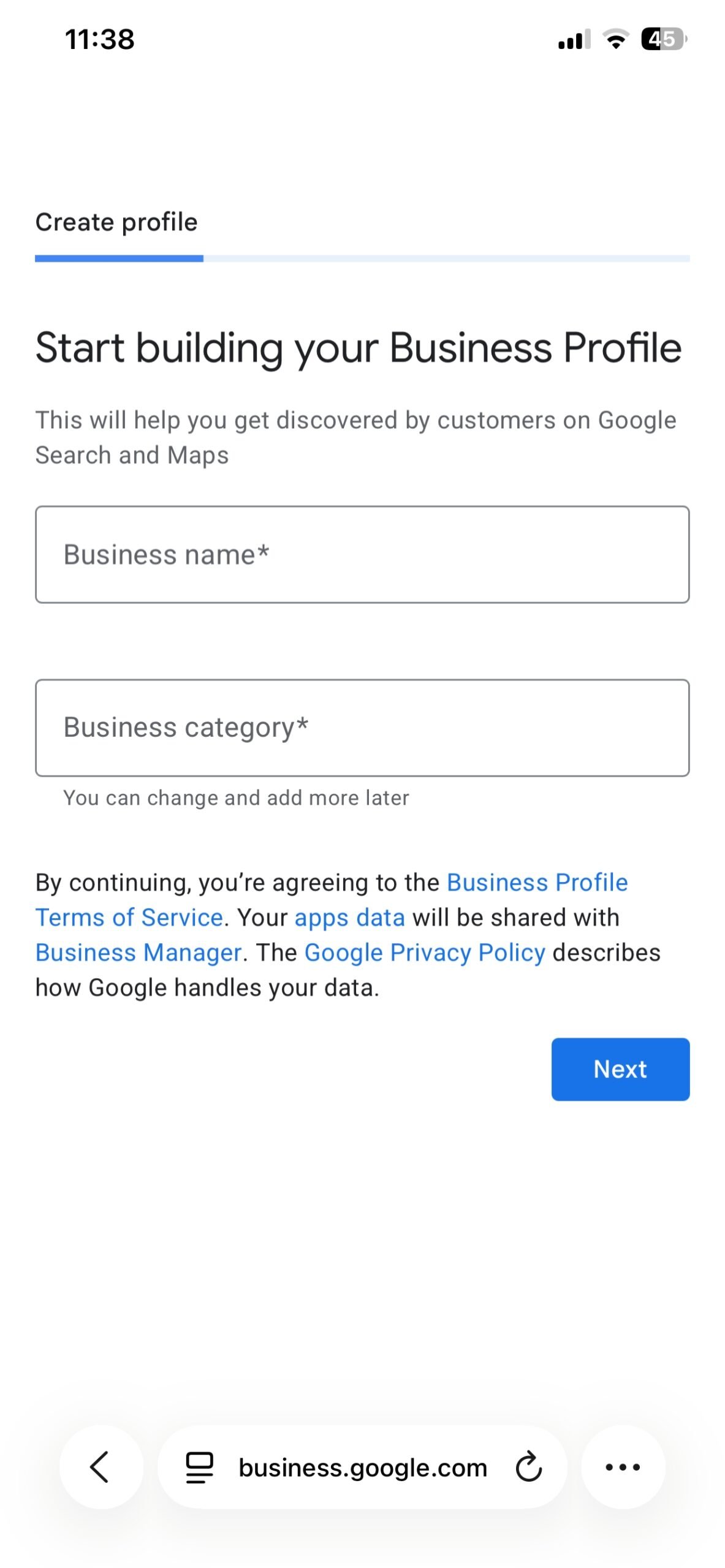
Step 2: Enter the real business name and primary category
Use the name customers see on your storefront, website and official materials. Do not attach locations, phone numbers or search phrases unless they are genuinely part of the business name.
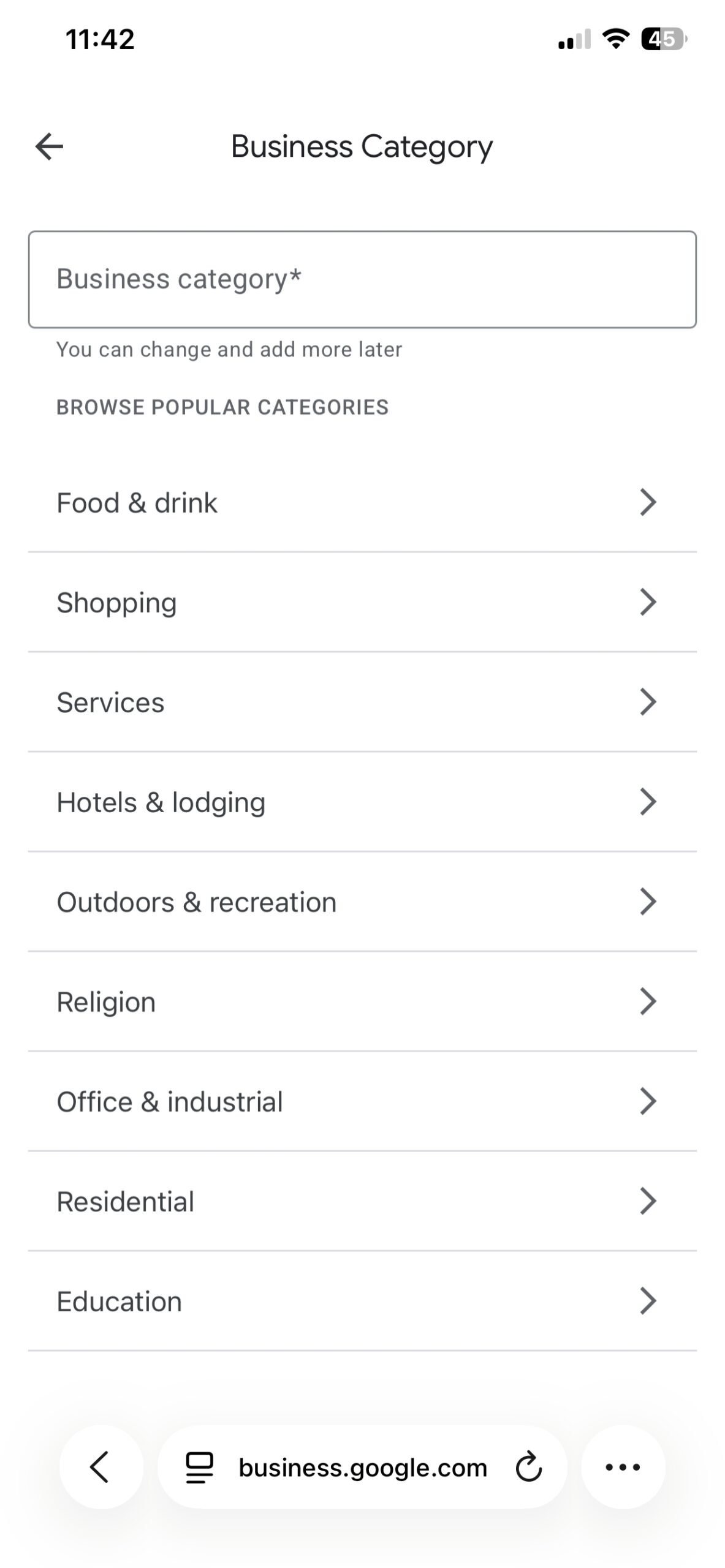
Start typing what the business does and select the closest available category. Your primary category should describe the core business. Additional categories can be added later when they are accurate, but categories are not a place to list every service.
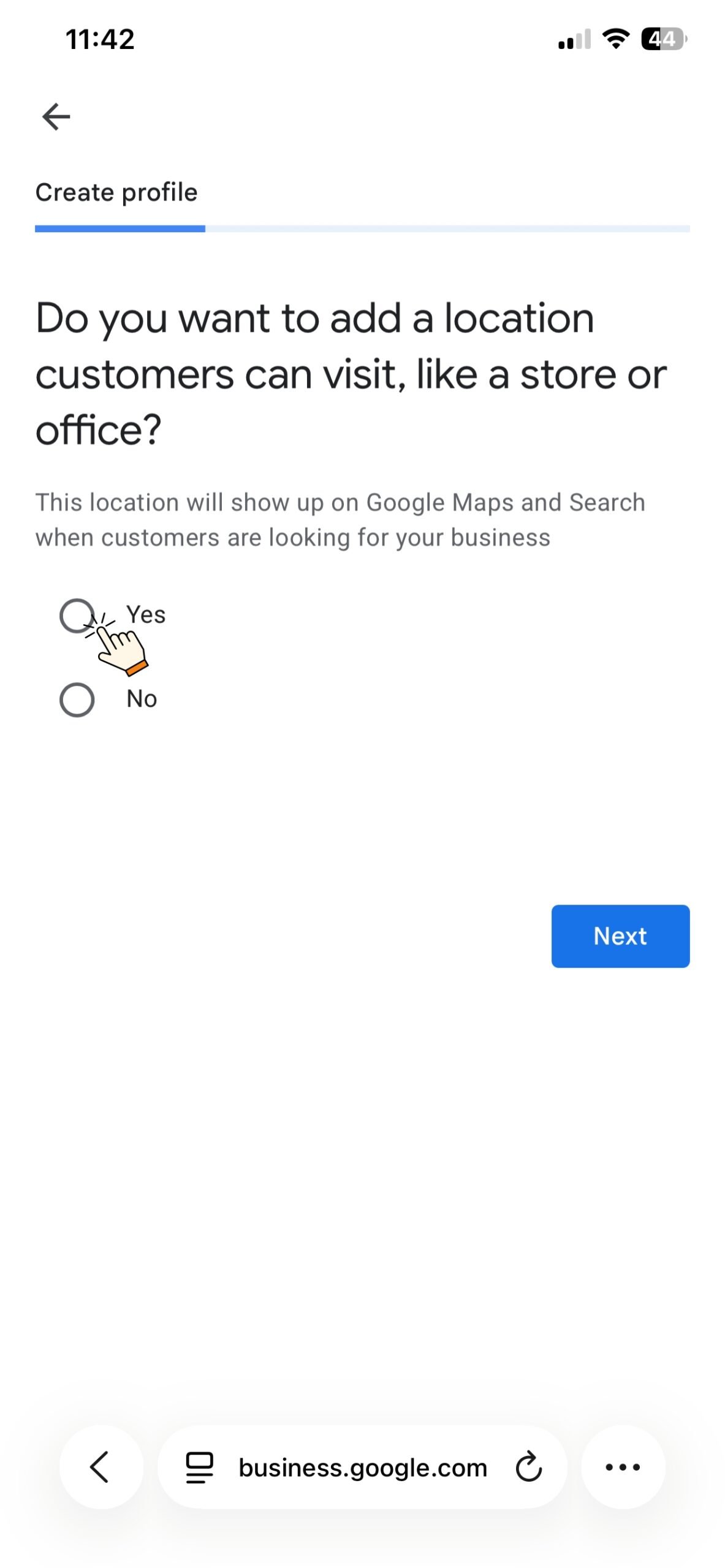
Step 3: Say whether customers visit your location
Choose Yes only if customers can visit a genuine, staffed business location during the stated hours. Choose No if you travel to customers and do not serve them at your address.
A home-based service business can still qualify. If customers do not visit the home, the address should be hidden and a service area shown instead.
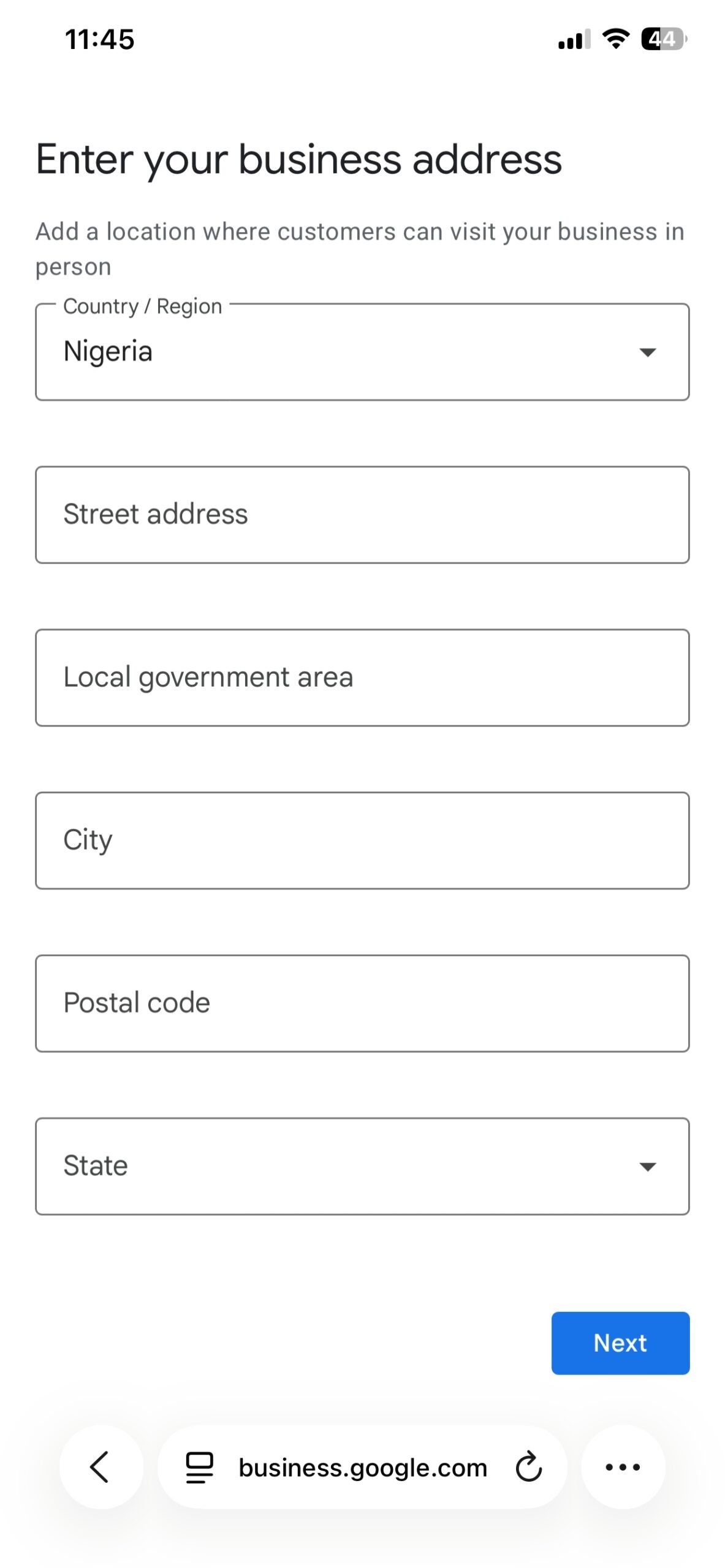
Step 4: Enter the address when customers visit you
For a customer-facing location, enter the real address as accurately as possible. The example screen requests the country or region, street address, local government area, city, postcode and state.
Do not use a P.O. box, remote mailbox or virtual office where the business does not genuinely operate. If Google cannot place the address correctly, you may be asked to adjust the map pin.
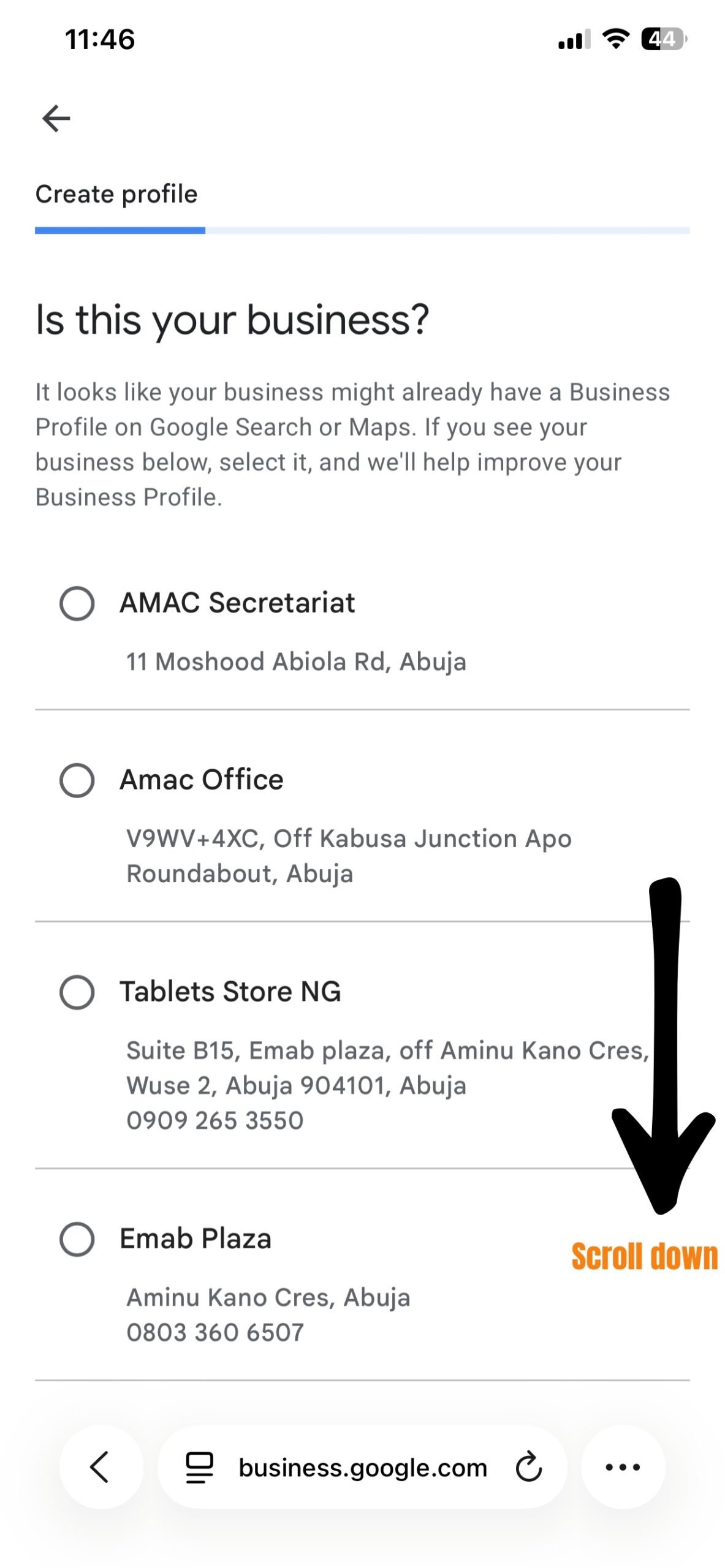
Step 5: Check for an existing profile before creating another
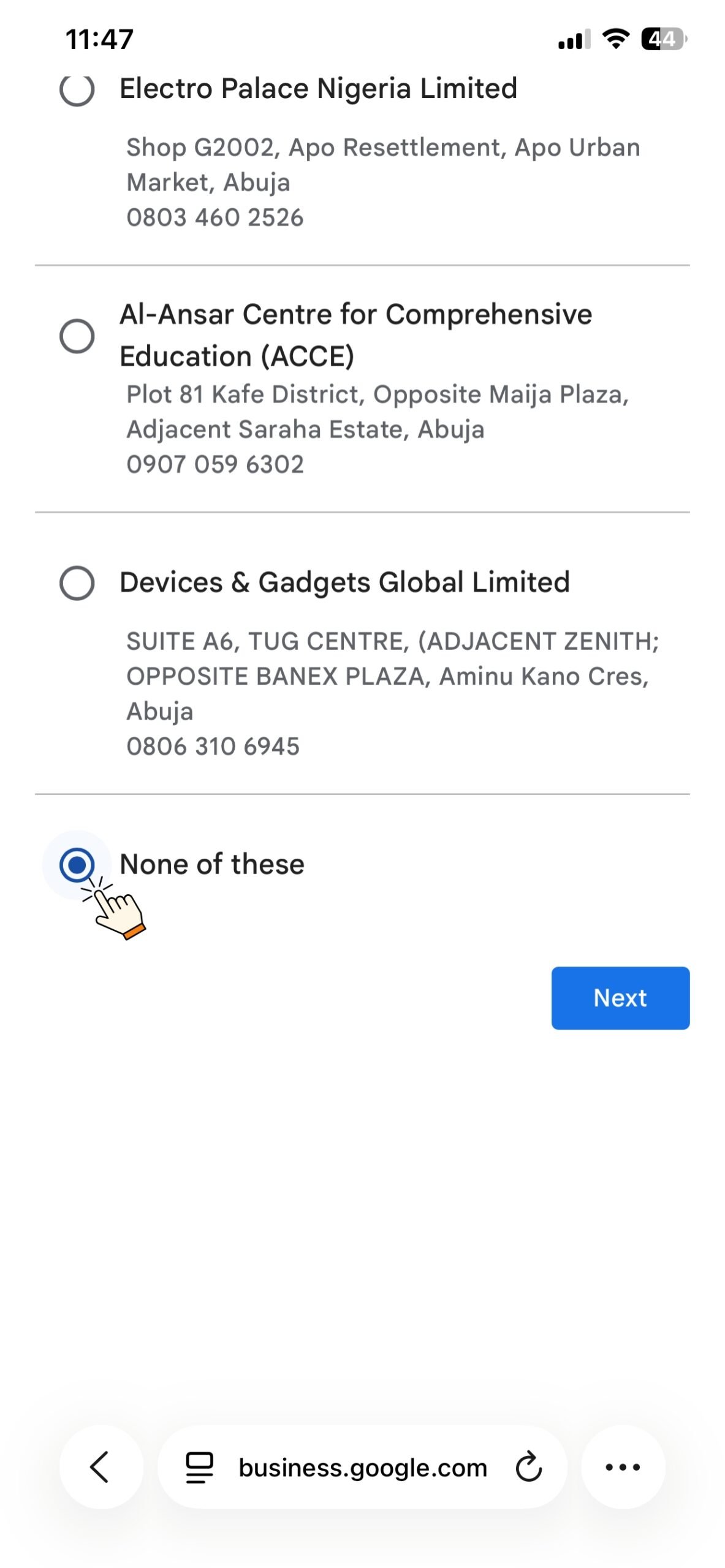
Google may show businesses that resemble the name and category you entered. Check the name, address and contact details carefully.
If the correct business appears, select it and follow the claiming process. Creating a second profile for the same business can produce a duplicate that Google may suppress. If none of the options represents your business, choose None of these.
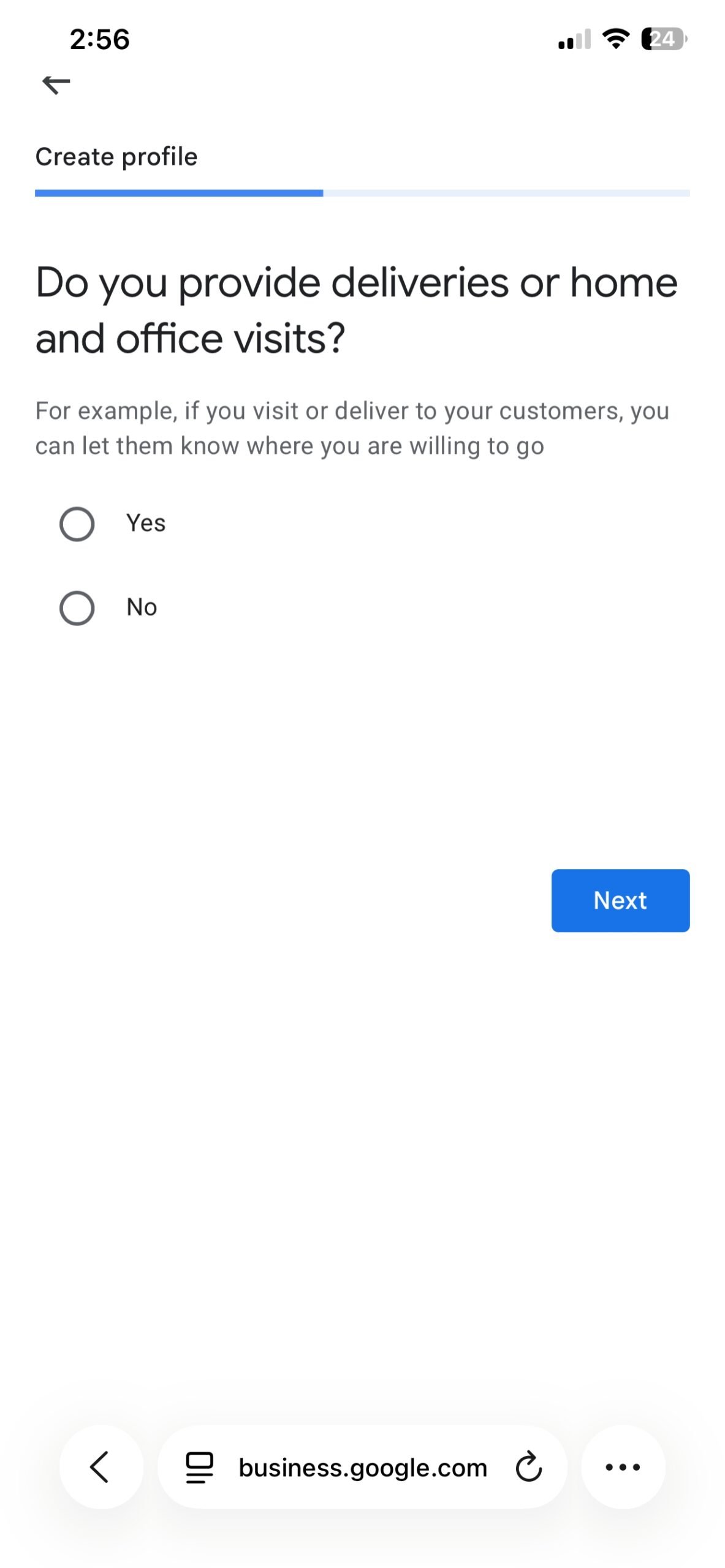
Step 6: Indicate whether you deliver or visit customers
Google may ask whether the business provides deliveries or home and office visits. A restaurant that serves diners and delivers may answer yes. A cleaner, plumber or mobile technician may also answer yes because the service is provided at the customer’s location.
Answer according to how the business actually operates; this helps Google classify it as a storefront, service-area or hybrid business.
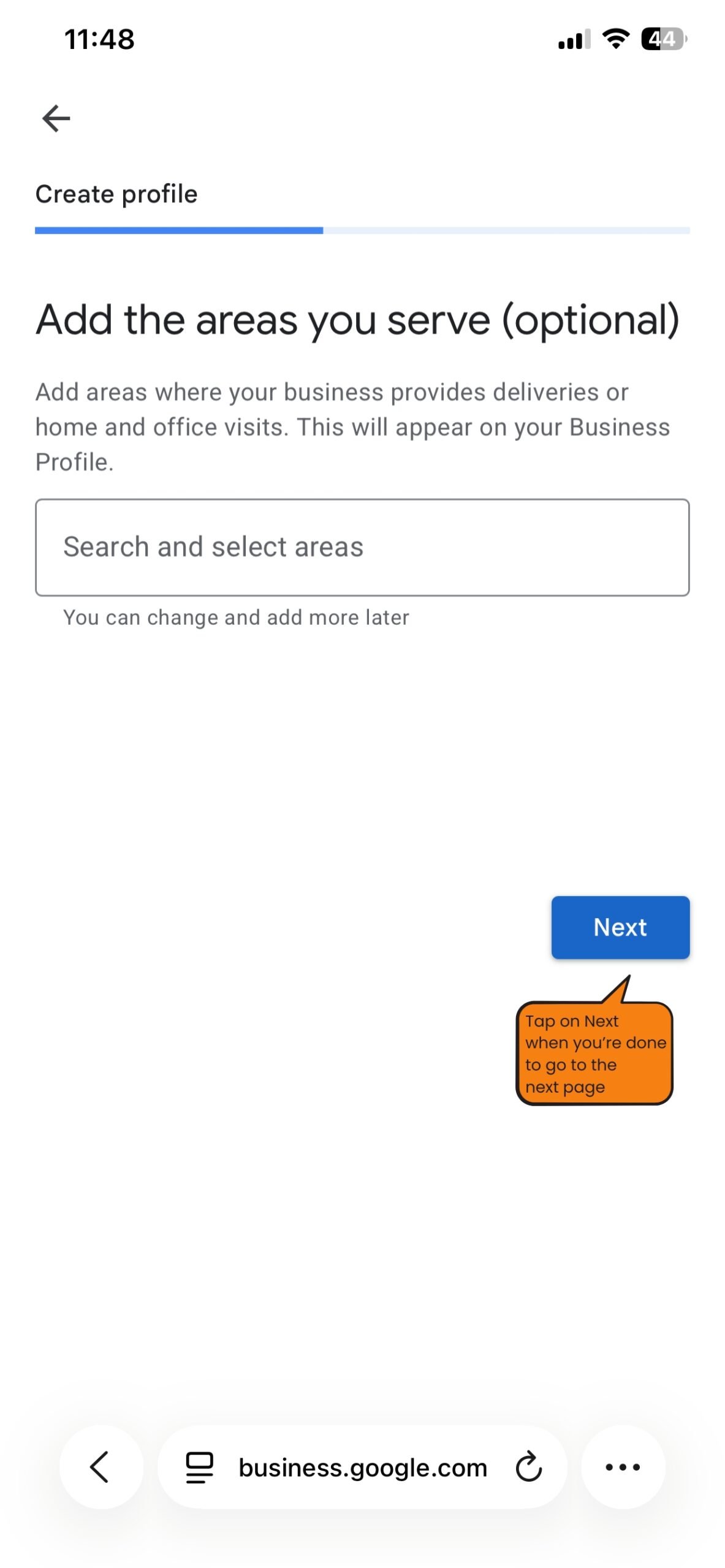
Step 7: Add the areas you genuinely serve
A business that travels to customers can list the cities, postcodes or supported areas it serves. Keep the list realistic. Selecting distant places does not make the business more relevant there.
Google’s service-area guidance currently permits up to 20 areas and advises that the overall area should ordinarily be reachable within about two hours’ drive from the business base. The exact options shown can vary by location.
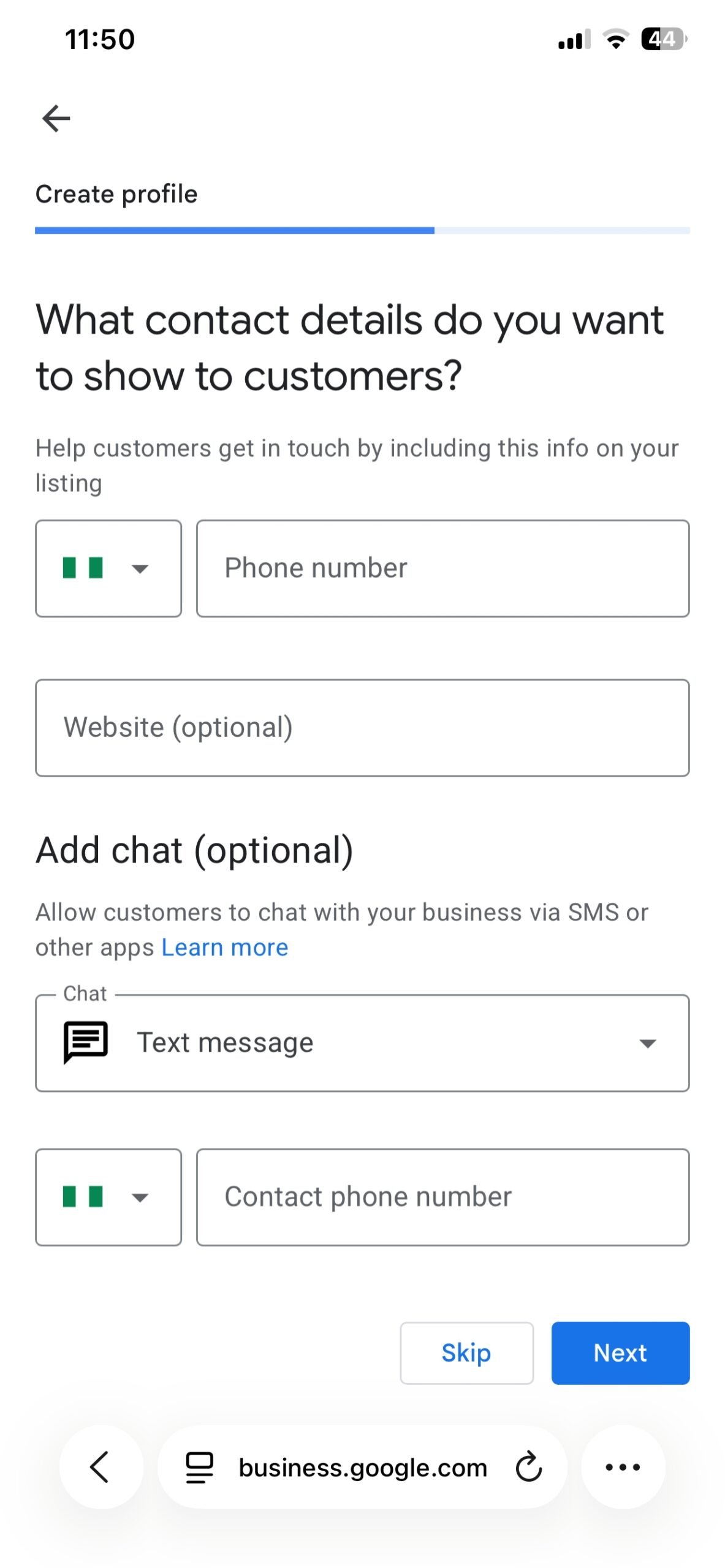
Step 8: Add customer-facing contact details
Enter a working business phone number and add the website if one is available. The number should connect customers directly to the business rather than to an unrelated call centre or lead seller.
The example also shows an optional chat field. Messaging options vary by category, account and region. A website is useful, but it is not required to begin an otherwise eligible profile.
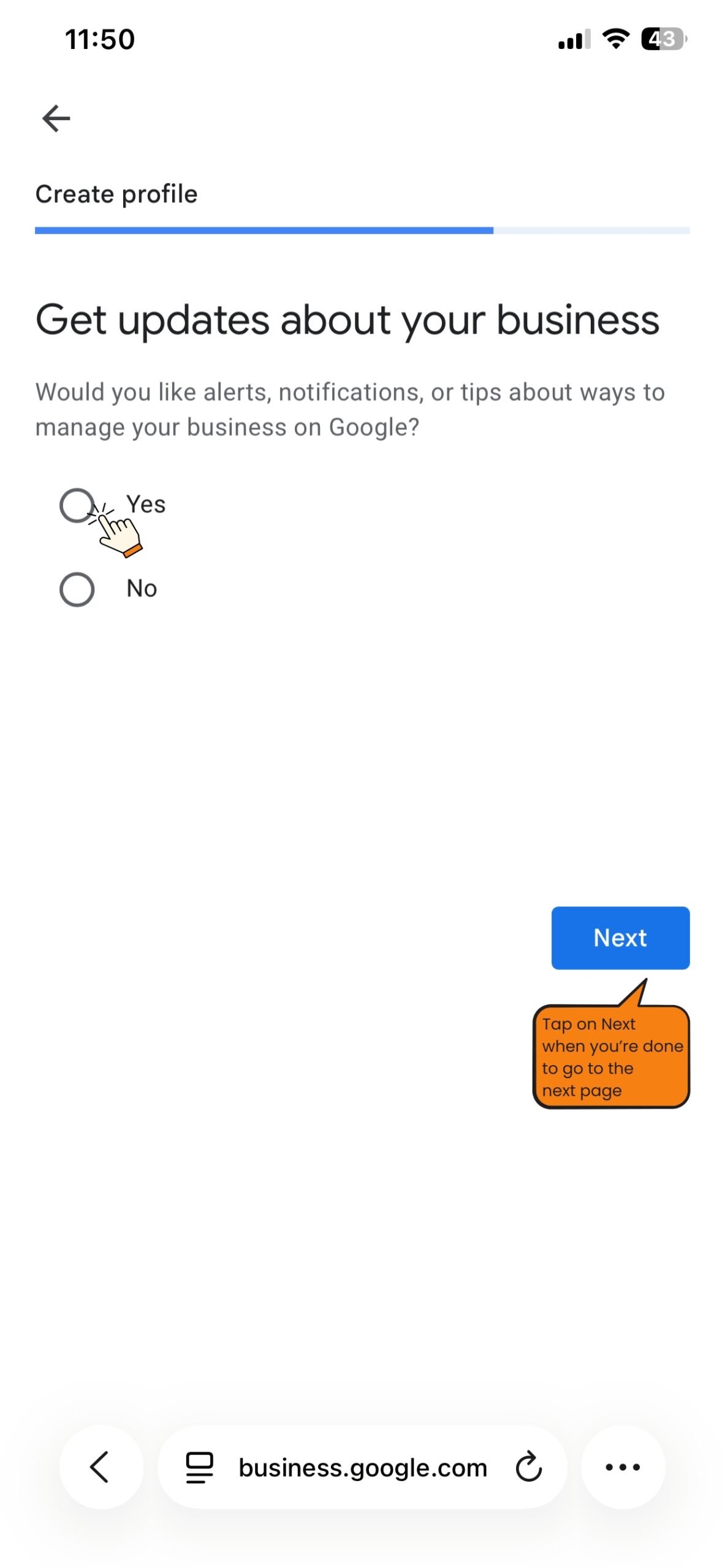
Step 9: Choose whether to receive Google updates
This screen controls management alerts, tips and notifications from Google. Choose the option you prefer and continue. It does not change the main information customers see on the profile.
Step 10: Complete the verification offered to you
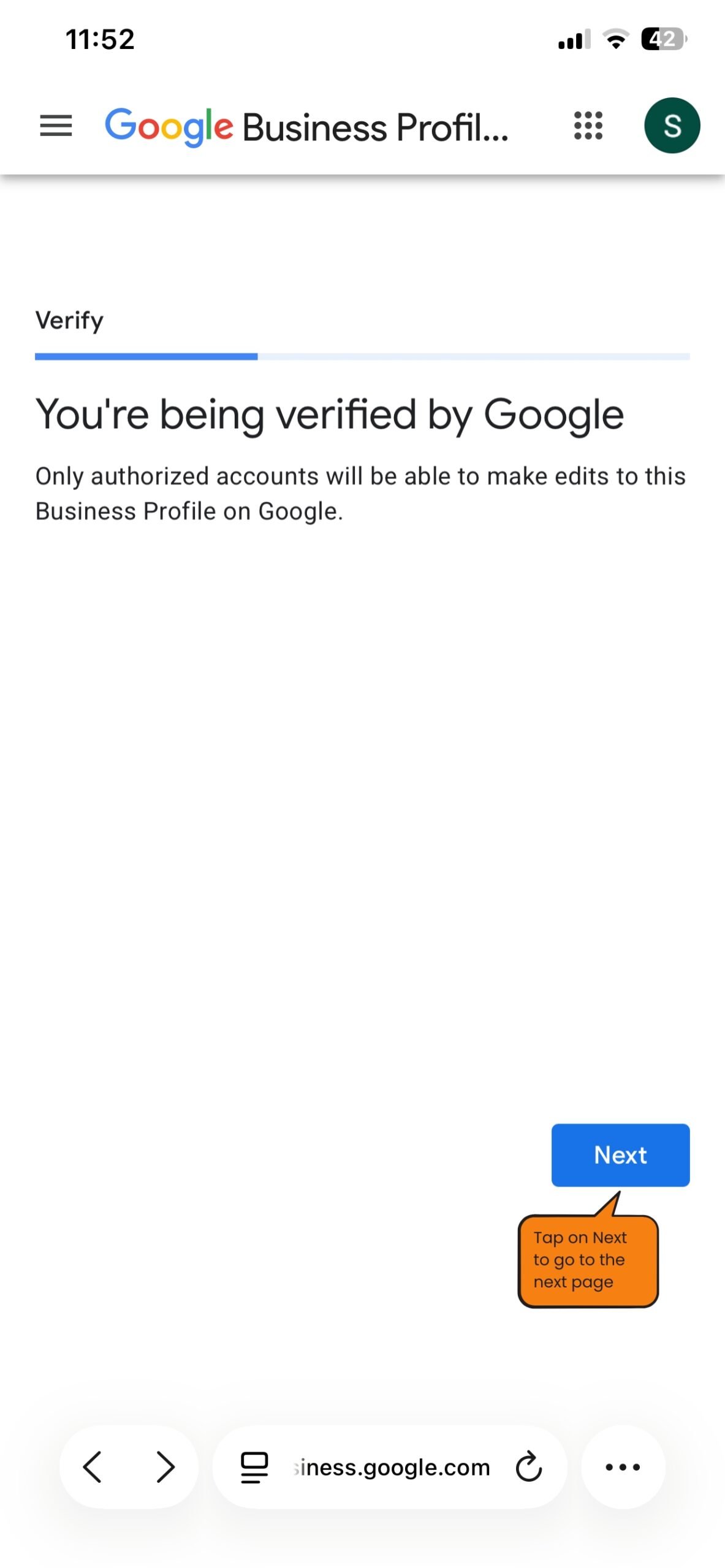
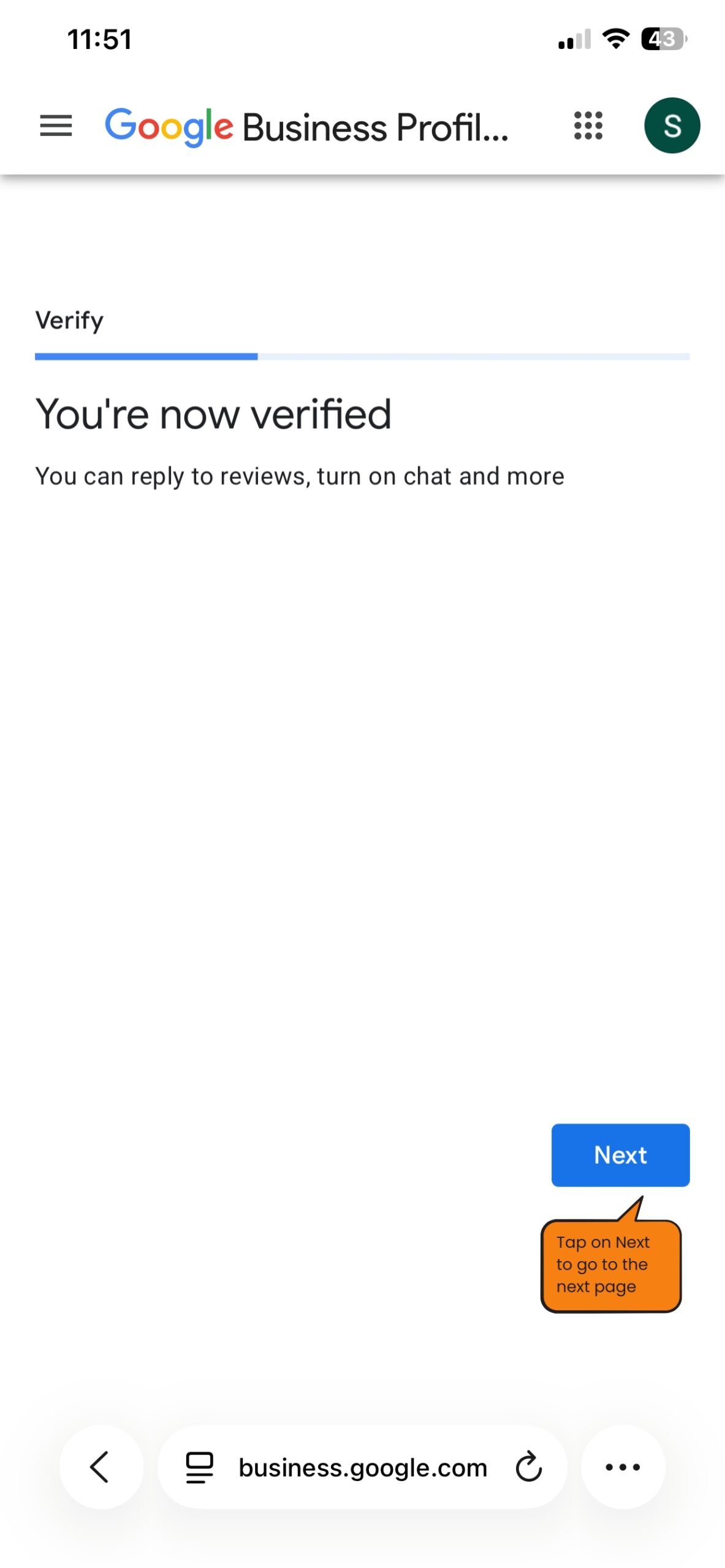
Google must confirm that you are authorised to represent the business. The method is selected automatically and may involve video, phone or SMS, email, live video, or a postcard. Some businesses must complete more than one method.
The screenshots show both a review in progress and a successful verification message. Your screen may be different. Follow the method displayed inside your own profile rather than trying to force another option.
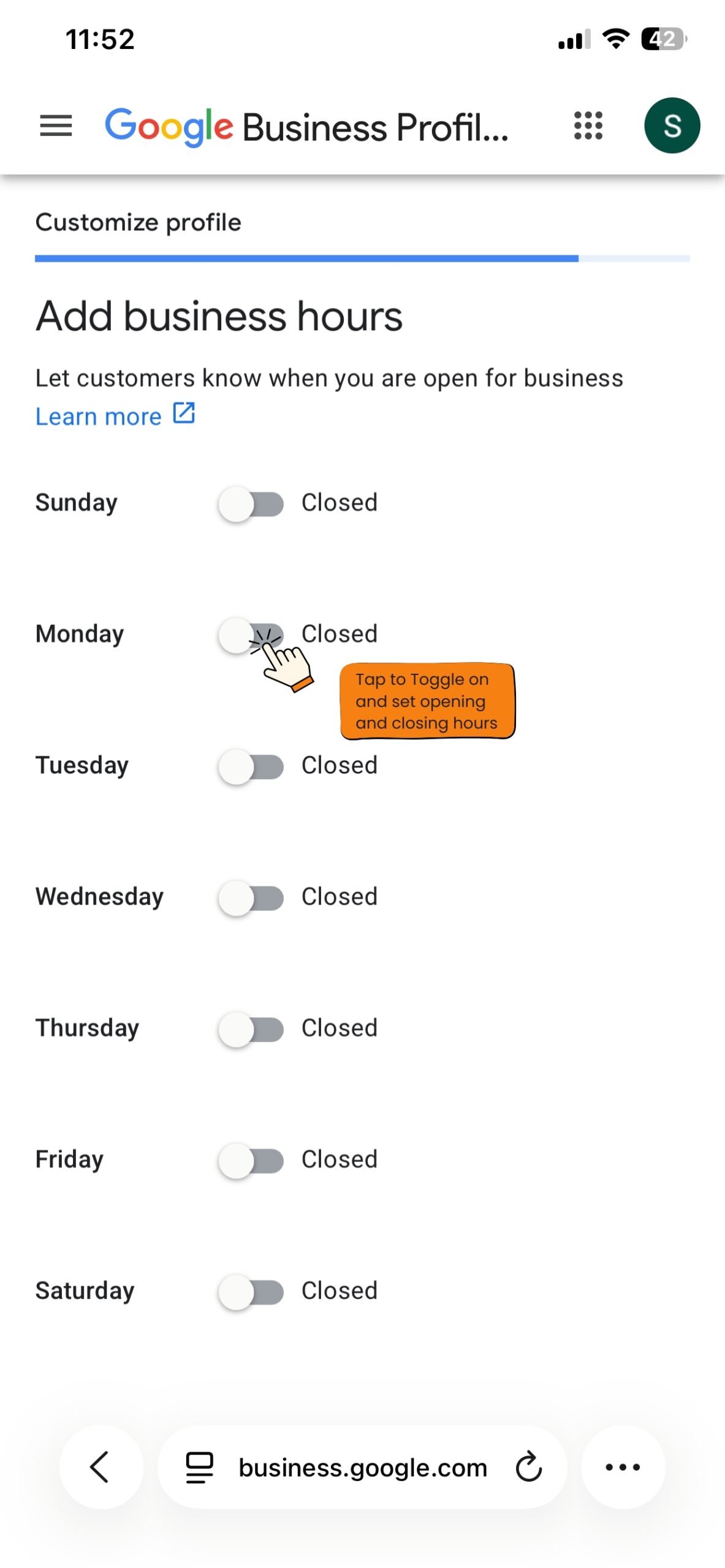
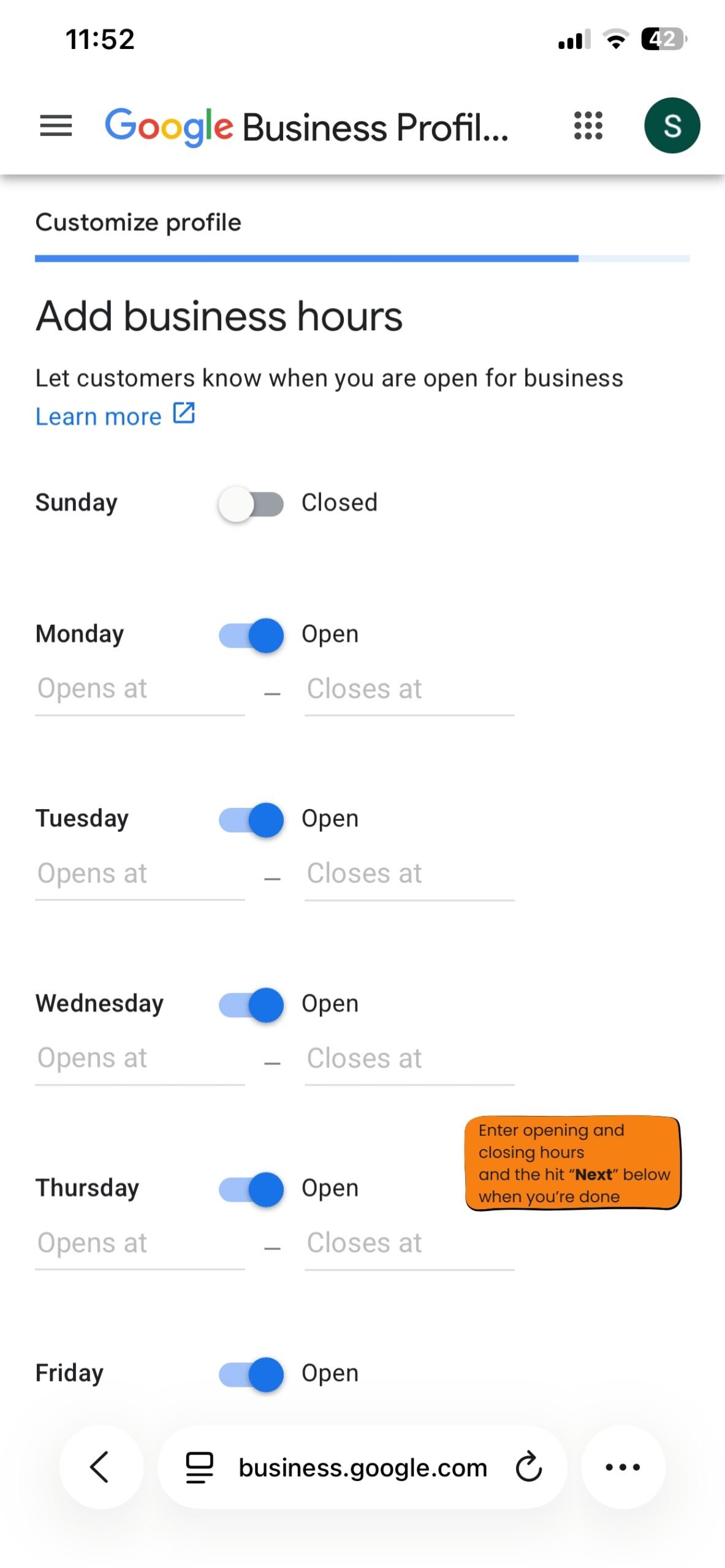
Step 11: Set the normal business hours
Turn on each day the business normally serves customers, then enter the correct opening and closing times. Use customer-facing hours, not the hours someone happens to be checking messages.
Public holidays and temporary changes belong under special hours, so the normal weekly schedule remains accurate.
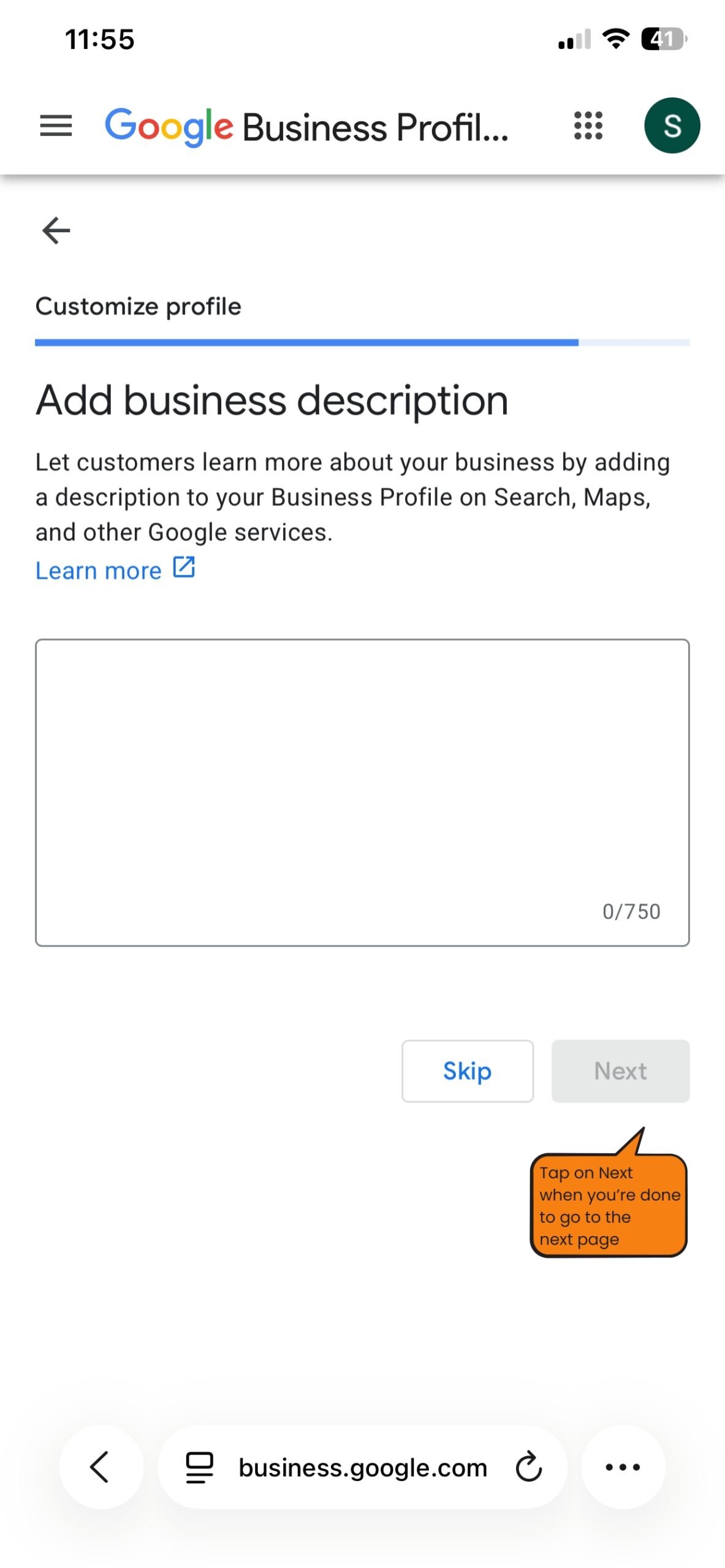
Step 12: Write a useful business description
Explain what the business does, its main products or services, who it serves and any relevant specialisation. Google limits the description to 750 characters; links, promotional prices and sales-focused offers are not permitted there.
Write for a customer who is deciding whether the business is relevant. Repeating locations and service phrases adds clutter and can create compliance problems.
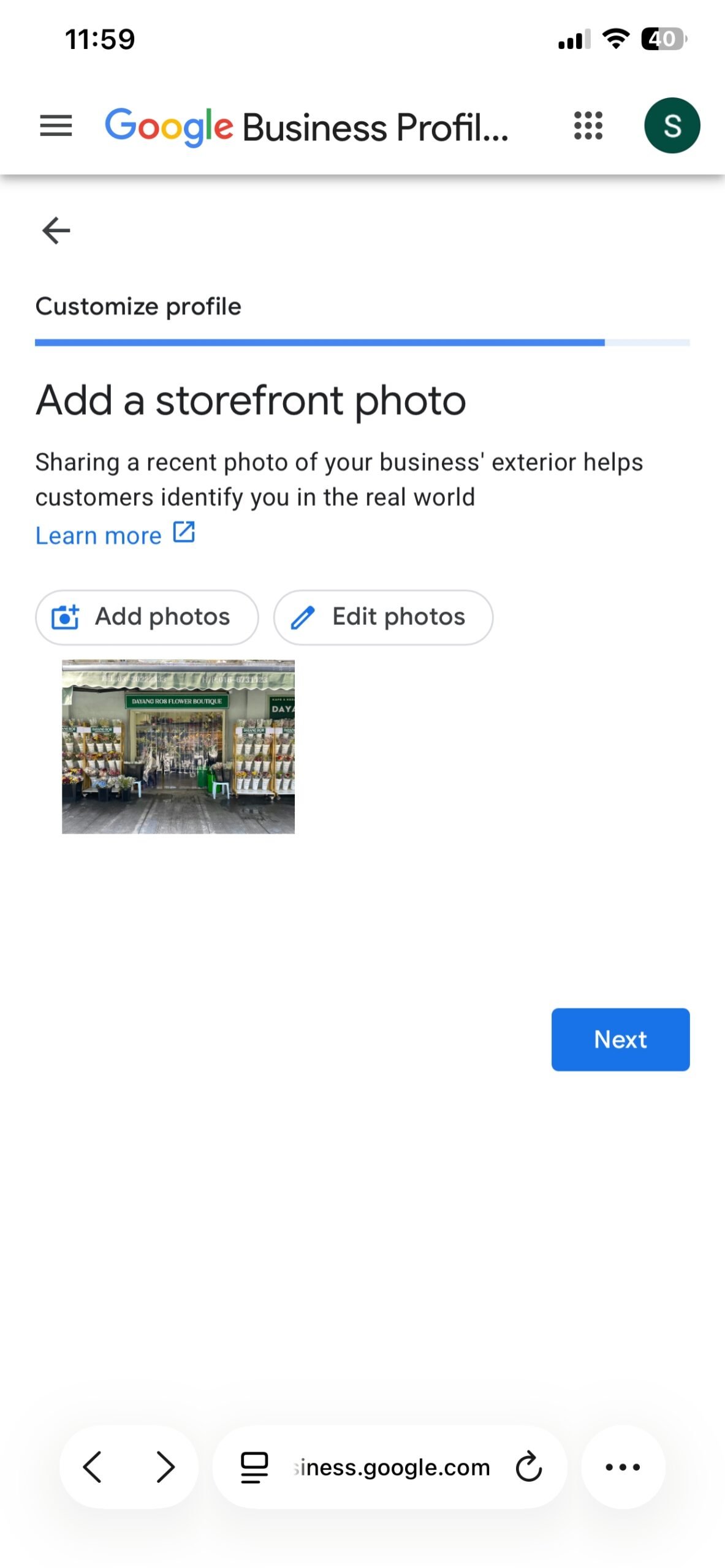
Step 13: Add a recognisable exterior or storefront photo
If customers visit the location, upload a current exterior image that helps them recognise it from the street. Clear signage and an unobstructed view are more useful than a decorative image.
A service-area business without a customer-facing storefront should follow the options appropriate to its business type rather than inventing a shopfront.
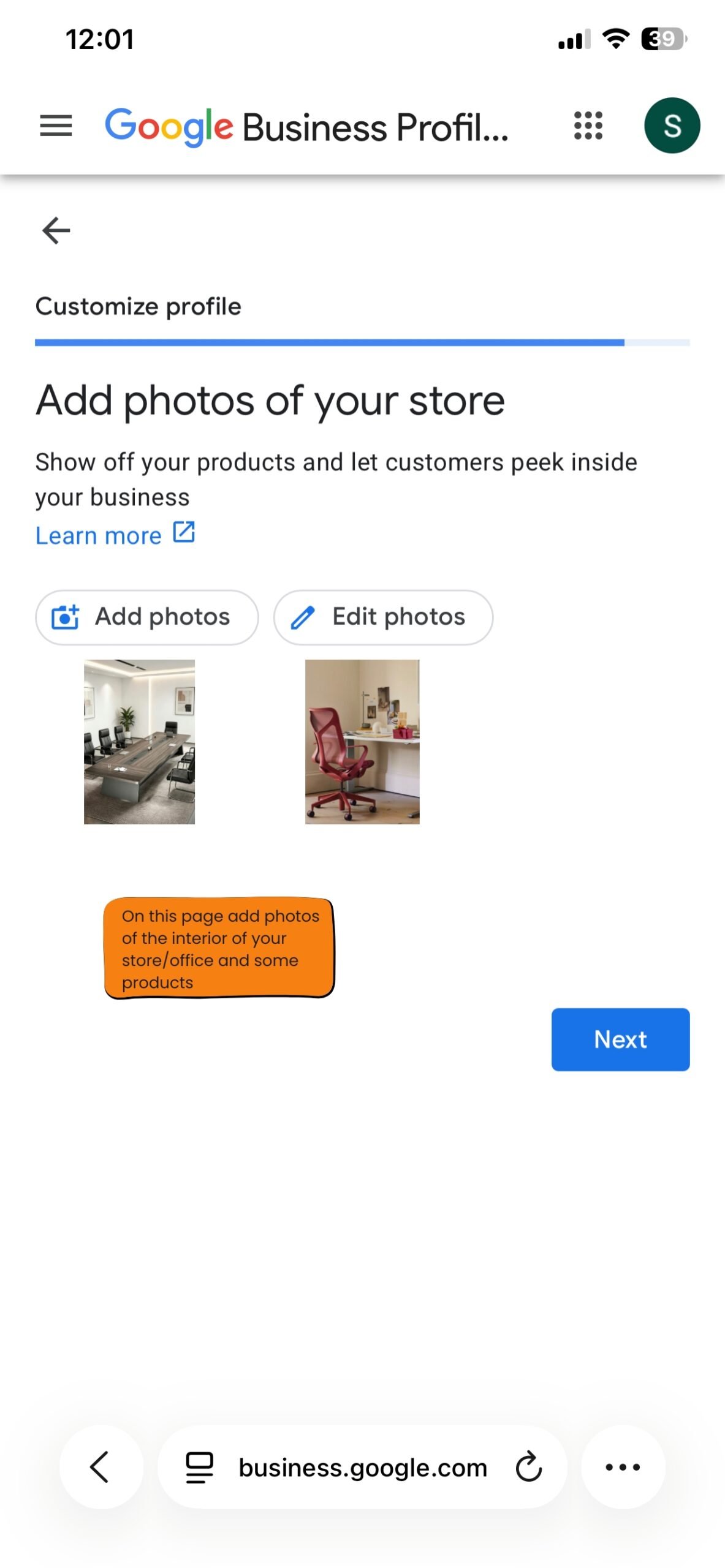
Step 14: Add interior, product and service photos
Use clear, authentic images of the premises, products, team, equipment or completed work. Heavy filters and unrelated stock photography make the profile less useful.
Google’s photo guidance accepts JPG and PNG images and recommends 720 × 720 pixels, with 250 × 250 pixels as the minimum. Business-uploaded photos become public only after verification.
Step 15: Watch for verification and edit-review messages
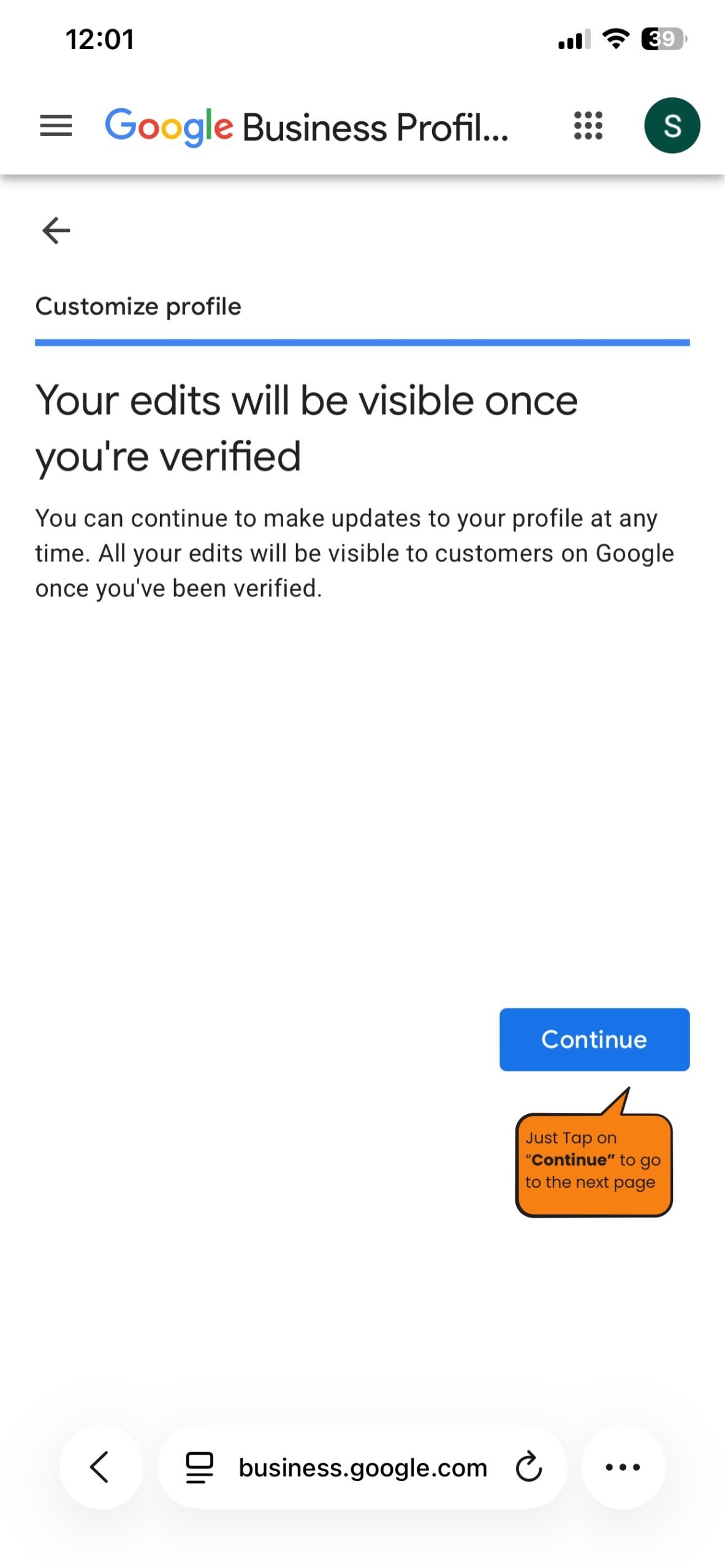
Some information may remain hidden while verification is incomplete. Even after verification, Google can review edits before displaying them.
The example says the edits will become visible once the business is verified. Treat the status shown inside your own profile as authoritative. Google says many edits are reviewed quickly, although some can remain under review for up to 30 days.
Step 16: Manage the finished profile from Google
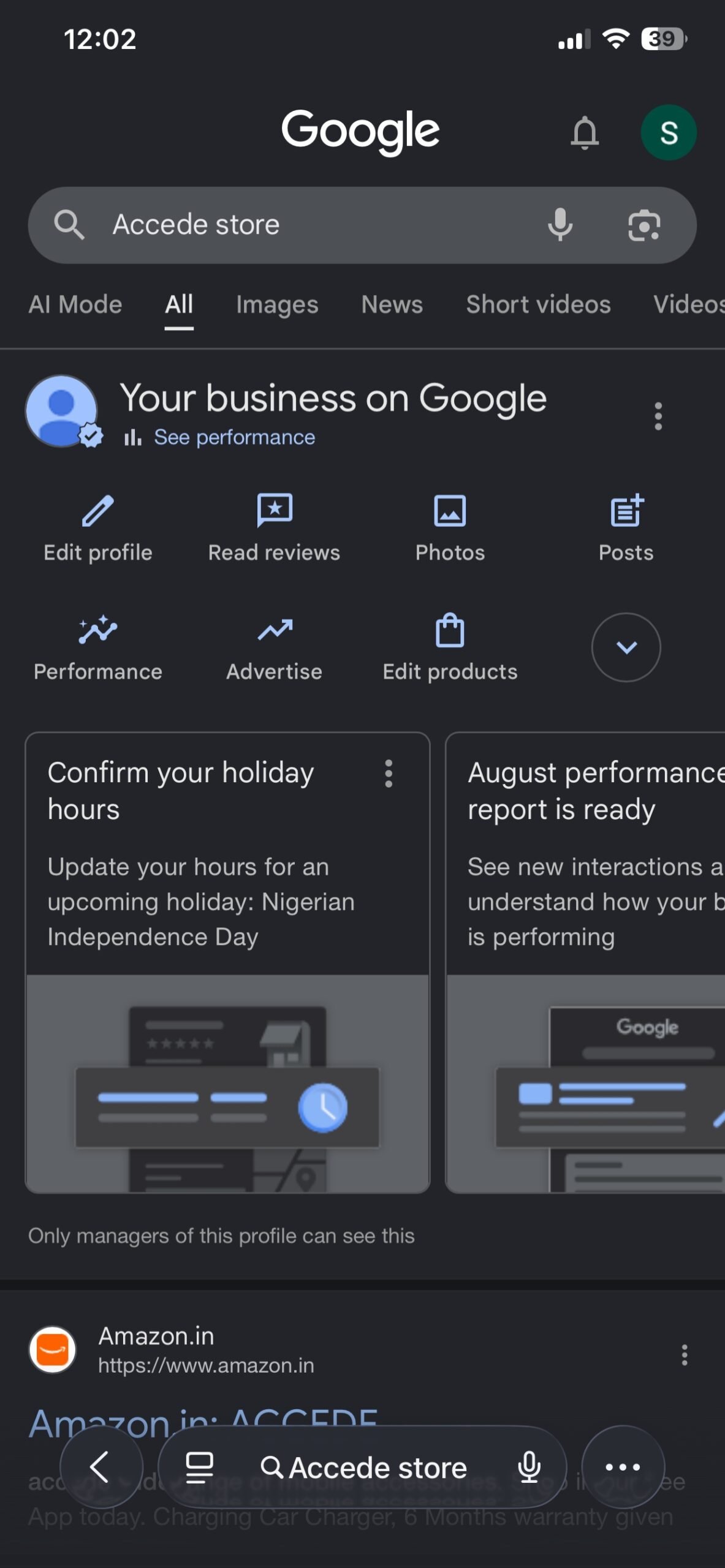
Once the profile is available, search for the business while signed in to the managing Google Account. Management controls can appear directly in Search or Maps.
The supplied example includes Edit profile, Read reviews, Photos, Posts, Performance, Advertise and Edit products. The controls on your profile may differ by category, region and supported features.
What happens after you create the profile?
Creation does not mean every detail is immediately public. Google may still need to verify the business, review individual edits or reconcile your information with other sources.
Profile changes can be accepted, rejected or left pending. Google also receives business information from owners, users, public websites, licensed data and its own interactions with places. If a source suggests that your details are outdated, Google may update the profile and notify you.
Review the profile periodically. A wrong phone number or holiday schedule can remain visible long after the setup session has been forgotten.
How Google Business Profile verification works
Verification confirms that the person managing a profile is authorised to represent the business. Google chooses the available method; the owner cannot unlock an option that has not been offered.
Current methods can include video recording, phone or SMS, email, live video and postcard. More than one method may be required.
Video verification
A recorded verification video must be created through the profile process on a mobile device. Google currently requires one continuous, unedited and unique recording lasting at least 30 seconds. What must appear depends on the business type.
A storefront may need to show the surrounding street, permanent signage, the interior or equipment, and evidence that the recorder can access staff-only areas. A service-area business may need to show the operating area, work equipment, branded materials, business documents and evidence of management authority. Google says video reviews can take up to five business days.
Phone, SMS or email
When one of these methods is offered, use the number or email Google displays and follow the instructions. Availability is determined automatically.
Postcard
Postcard verification is no longer offered to every business. When available, Google says most codes arrive within 14 days. Avoid changing the name, address or category while waiting because that can invalidate the code.
If the offered method keeps failing
Check eligibility and confirm that the name, address, category and operating model comply with Google’s guidelines. If the business is legitimate and the displayed method cannot be completed after careful attempts, use Business Profile support. Do not create another profile to bypass verification.
How to complete and maintain your Google Business Profile
Verification gives you control of the profile. The useful work is keeping it accurate and answering the questions a customer is likely to have.
Keep the essentials current
Check the name, address, service areas, phone number, website, categories, regular hours and special hours. When a temporary holiday schedule changes, edit special hours rather than rewriting the weekly schedule.
Use categories carefully
The primary category should describe the main business. Add only the few secondary categories that genuinely apply. Google treats categories as a classification system, not a keyword field, and a category change can trigger reverification.
List real services and products
Supported service businesses can add services, descriptions and sometimes prices. Product tools vary by category and location. Use the feature only for things the business actually sells.
Add photographs that reduce uncertainty
Show the exterior, interior, products, equipment, team and finished work where relevant. A customer deciding whether to visit gains more from an honest photograph than from a generic promotional graphic.
Ask customers for honest reviews
Google provides a review link that can be shared after a genuine customer interaction. Do not offer gifts, discounts or other rewards for positive reviews; Google treats incentivised reviews as fake engagement. Respond professionally to both praise and criticism.
Publish updates when there is something useful to say
Posts can announce events, offers and relevant business updates. Regular accuracy matters more than posting simply to make the profile look active.
Connect the profile to a useful website
A strong website supplies the deeper context a profile cannot hold: service pages, locations served, case studies, FAQs and educational content. See Adnitude’s SEO services and web design services for the connected pieces.
What actually affects local visibility?
Google’s framework is straightforward:
- Relevance: how well the business matches what the person searched for.
- Distance: how far the business is from the searcher or the location named in the query.
- Prominence: how established or well known the business appears, including information Google finds across the web and signals such as reviews.
That is why two people can run the same search and receive different results. Optimisation means giving Google and customers accurate, convincing information. It does not mean adding fake locations or inserting search phrases into the business name.
Google Business Profile vs a website: do you need both?
A Business Profile is built for quick discovery in Search and Maps. It answers immediate questions: where the business is, whether it is open, how to call, what customers say and how to get directions.
A website gives the business far more control. It can explain services properly, show work, publish useful resources, collect enquiries, support campaigns and target a wider range of searches.
For most local businesses, the strongest arrangement is a maintained Google Business Profile, a useful website, sound SEO and consistent business information across the web. If you are building that foundation, our beginner’s guide to getting found on Google explains the wider search process.
Common Google Business Profile problems and how to fix them
My business is not showing on Google
Check the exact business name in Search and Maps while signed out. Confirm that the profile is verified and does not show a suspension, restriction or pending review. A new profile can take time to appear, and verification does not guarantee visibility for broad searches. Review the category, location, service area and completeness; contact support when the profile should be public but appears technically blocked.
I cannot find my business on Google Maps
Search the name together with the location. If an unverified profile exists, claim it instead of creating another. For a verified profile with a wrong pin, edit the location and adjust the map pin where the option is available.
My business already has a profile
Do not create a duplicate. Claim the existing unverified profile. If it is already verified by someone else, use Google’s ownership-request process.
Someone else owns or manages my profile
Request access from the profile. Google generally gives the current owner three days to respond. A denied request may be appealable, and a request with no response may later offer a claim option, although that is not guaranteed.
Google will not let me verify my business
Confirm that the business is eligible and that its name, address, category and operating model comply with the guidelines. For video verification, make the location, business activity and your authority unmistakable. If a compliant business repeatedly fails the required method, contact Business Profile support.
My preferred verification option is unavailable
This is often expected rather than an error. Google selects the methods automatically. Use the method displayed and seek support only when that method cannot reasonably be completed or continues to fail.
My Business Profile was suspended
Read the guidelines before appealing. Correct genuine policy issues, but do not create a replacement profile while the appeal is open. The appeal process may accept registration, licence, tax or utility documents whose details match the profile. Reinstatement is not guaranteed.
My business address is not displaying correctly
Open Edit profile, check the full address and adjust the map pin if necessary. When customers do not visit the address, the correct solution may be to hide it and use a service area.
My service area is wrong
Edit the service areas under the location settings. Use real cities, postcodes or supported areas. Google currently allows up to 20; changes can take time to appear.
I accidentally created a duplicate profile
Stop updating both profiles. Use Google’s duplicate or ownership process, or contact support when the profiles cannot be resolved from the management interface.
I cannot change my business name
The proposed name must match the name used in the real world. Remove promotional wording and information that belongs elsewhere on the profile. A substantial name change can trigger verification; provide evidence through support when a legitimate change remains rejected.
Google changed information on my profile
Review the notification and correct inaccurate details. Then check whether the website or another public listing still carries the old information, because Google may be using those sources.
My business hours are incorrect
Correct the regular hours. Use special hours for holidays and temporary schedules. When a correct edit keeps failing, remove conflicting hours from the website and other public listings before asking support to review it.
My photos are not showing
Business-uploaded images appear publicly only after verification and must meet Google’s technical and content rules. Check their status and allow for review. Contact support when a compliant image remains missing for an unusually long period.
My reviews are missing
Reviews can be delayed or removed when Google’s systems detect a policy issue. Merges can also delay them. Check Google’s missing-review guidance; if several legitimate reviews disappear, document the pattern before contacting support.
I received a fake or inappropriate review
A harsh review is not automatically a violation. Report reviews that contain spam, prohibited content or another clear breach through the Reviews Management Tool. Some decisions can receive a one-time appeal. Respond calmly; do not retaliate or manufacture positive reviews.
My verified profile barely gets visibility
Review the primary category, completeness, website relevance, genuine reviews, photos, local mentions and the searcher’s distance. Verification confirms control, not ranking. Focus on relevance, distance and prominence rather than tricks.
I cannot add the category I want
Google only accepts categories from its supported list. Choose the closest accurate category and add secondary categories only when they represent the business. You cannot create a custom category.
I run a home-based business and do not want my address public
If customers do not visit the home, configure the business as a service-area business and hide the address. Google may still require accurate location information privately for setup or verification.
I have no storefront because I travel to customers
An eligible service-area business does not need to pretend it has a shop. Provide the real business base when Google requires it, hide the address from customers and list the appropriate service areas.
I operate more than one business location
A genuine business can usually create one profile for each eligible, real operating location. Larger organisations can use Business Profile Manager and bulk tools. Do not create virtual branches simply to cover more cities.
Frequently asked questions about Google Business Profile
It is Google’s free system for eligible businesses to manage key information shown in Google Search and Maps.
Yes. Eligible businesses can add or claim a profile at no charge. Paid advertising is separate.
Sign in to a Google Account, open the Business Profile setup, enter accurate business details and complete the verification method Google offers.
Yes. The setup works in a mobile browser, and an existing unverified business can also be claimed through Google Maps.
A business generally needs to meet customers in person at a genuine location or travel to them during its stated hours.
No. An eligible service-area business can have a profile without receiving customers at a storefront.
Yes. It can hide its address and display the cities or areas where it serves customers.
Generally no. Google lists online-only businesses among the organisations that are not eligible for a standard profile.
Complete the method shown in the profile. Google may offer video, phone or SMS, email, live video or postcard verification.
It depends on the method. A code can be quick; Google says recorded video review can take up to five business days, while most postcards arrive within 14 days when that method is offered.
The profile may be unverified, pending, suspended, duplicated or too new, or it may not rank for the broad search you tested. Check its status and search the exact business name first.
Create or claim an eligible Business Profile, provide accurate location information and complete verification.
Find it in Search or Maps and choose Claim this business or the equivalent option. Request ownership if somebody else has already verified it.
Yes, when each profile represents a genuine eligible location that the business actually operates.
Yes. If customers do not visit the home, use a service-area setup and hide the public address.
Eligible service businesses can use Edit services. Product options depend on the business type, location and features Google supports for that profile.
Open the profile’s photo controls and upload clear images that genuinely show the premises, products, services, team or work.
Ask real customers for an honest review and share the official review link after a genuine transaction. Do not reward positive reviews.
You can report a review that violates Google’s policies. Removal depends on a policy breach, not simply on whether the review is negative.
It can support local visibility by giving Google accurate information about the business. Local results are mainly influenced by relevance, distance and prominence.
No. The profile handles quick local discovery; a website gives the business control over detailed content, conversion paths and broader search visibility.
Update it whenever important information changes and review it periodically. There is no benefit in changing correct information merely to create activity.
Suspensions usually relate to eligibility or guideline concerns. Review the business name, address, category, ownership and representation rules before appealing.
Correct policy problems and submit an appeal. Provide matching evidence of the legitimate business when Google requests it.
Keep every relevant field accurate, choose suitable categories, maintain hours, add real photos and services, earn genuine reviews and keep the website and other business listings consistent.
Key takeaways
- Google Business Profile is free for eligible businesses and controls useful information shown in Search and Maps.
- The business generally needs genuine face-to-face customer contact to qualify.
- Use the real name, location and category; avoid fake addresses and keyword-filled names.
- A service-area business can hide its address when customers do not visit it.
- Google chooses the verification method. Verification confirms control but does not guarantee rankings.
- Local visibility is mainly shaped by relevance, distance and prominence.
- Keep the profile accurate after setup, and support it with a useful website and wider SEO.
Create the profile carefully, then keep it useful
The practical sequence is simple: check eligibility, prepare accurate information, create or claim the profile, complete the verification Google provides, finish the useful fields and keep the information current.
Do not trade accuracy for shortcuts. Fake locations, duplicate profiles and keyword-heavy names can turn a straightforward setup into a suspension or ownership problem.
If the wider challenge is helping customers find and understand the business online, Adnitude can help connect the profile with a better website, SEO and a clearer digital customer journey. Start a conversation with Adnitude.
Sources
- Get started with Google Business Profile
- Add or claim your Business Profile
- Business eligibility and ownership guidelines
- Guidelines for representing your business
- Verify your business
- Video verification requirements
- Manage service areas
- Manage a business address
- Tips to improve local ranking
- Manage photos and videos
- Report inappropriate reviews
- Appeal a suspended or disabled profile
Community
Join the Conversation
Share a useful experience, question or perspective with other Adnitude readers.
Start the conversation
Be the first to add a thoughtful comment or practical question.